Merci de tester myMigo ! Ce guide vous accompagne pas à pas, de l'installation de l'application jusqu'à la découverte du tableau de bord parent. C'est une version bêta : il pourra y avoir quelques bugs — c'est justement pour ça que votre retour compte. Si quelque chose ne fonctionne pas comme prévu, écrivez-nous à hello@mymigo.fr.
Thank you for testing myMigo! This guide walks you through everything from installing the app to exploring the parent dashboard. This is a beta version, so a few bugs are expected — that's exactly why your feedback matters. If something doesn't work as expected, email us at hello@mymigo.fr.
1Installer l'applicationInstall the app
📱 iPhone / iPad
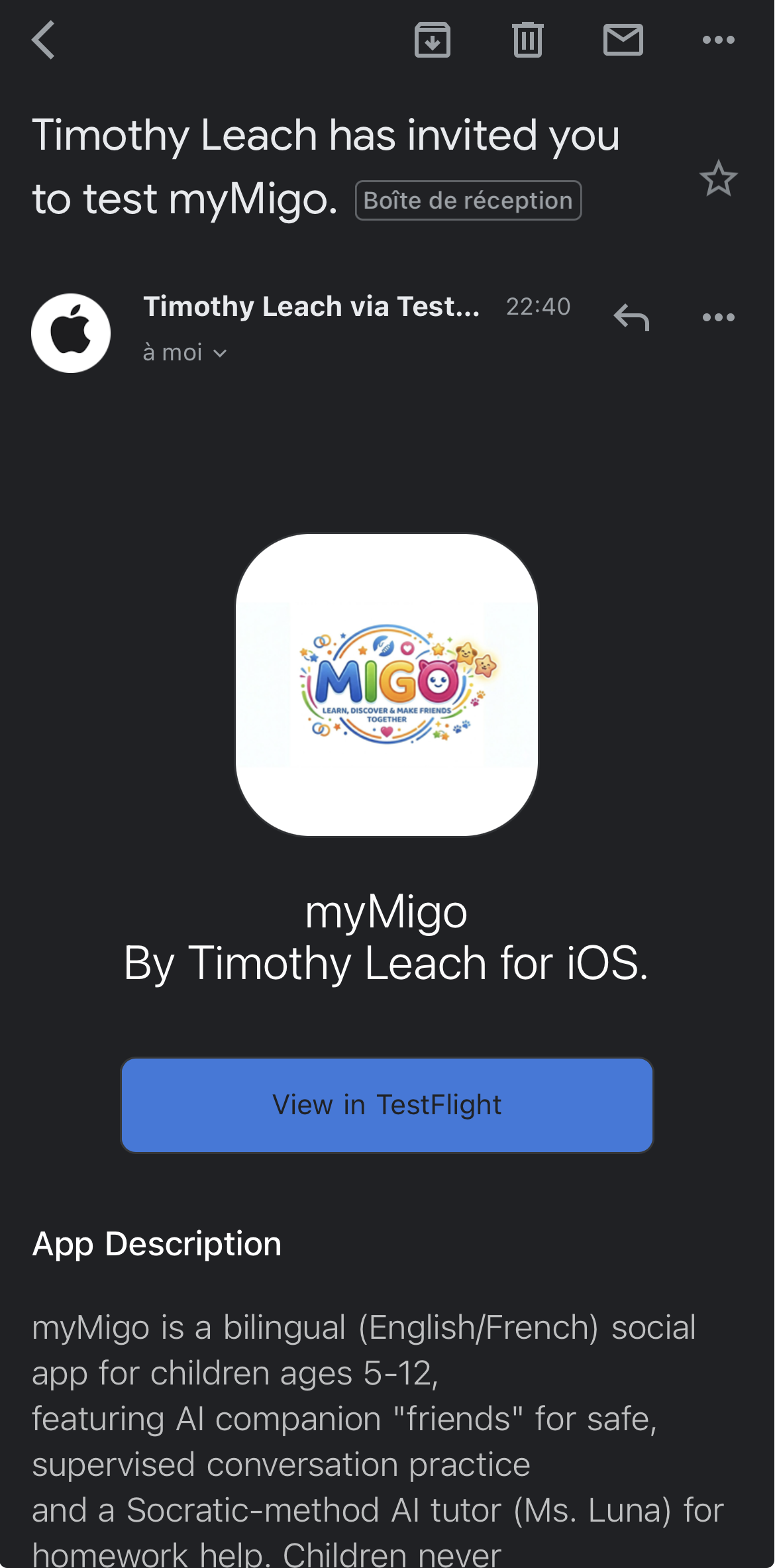
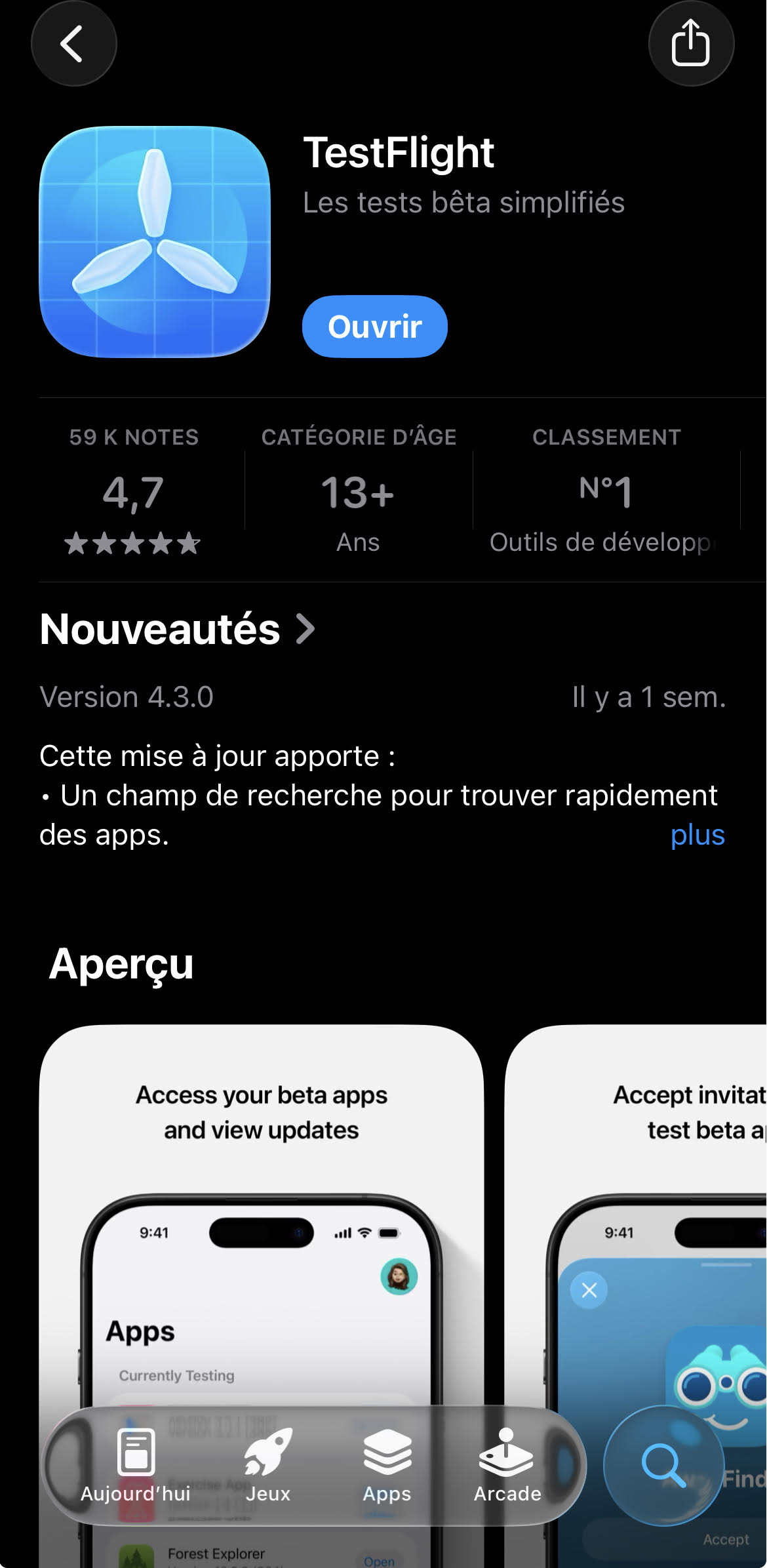
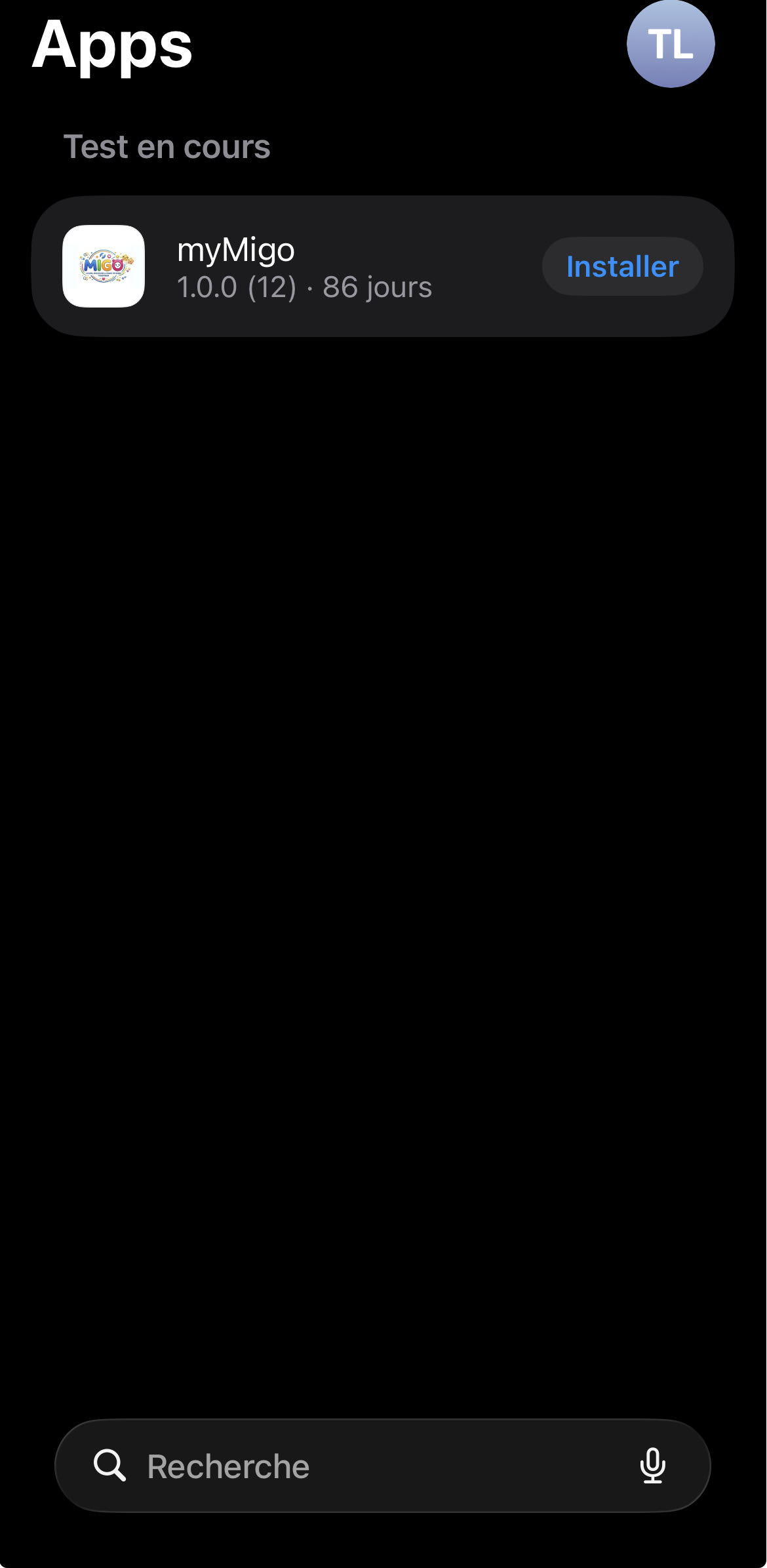
Vous recevrez une invitation TestFlight par e-mail. Ouvrez-la sur votre iPhone, installez d'abord l'app TestFlight (Apple) si vous ne l'avez pas déjà, puis appuyez sur Installer.
You'll receive a TestFlight invitation by email. Open it on your iPhone, install the TestFlight app (Apple) first if you don't already have it, then tap Install.
🤖 Android
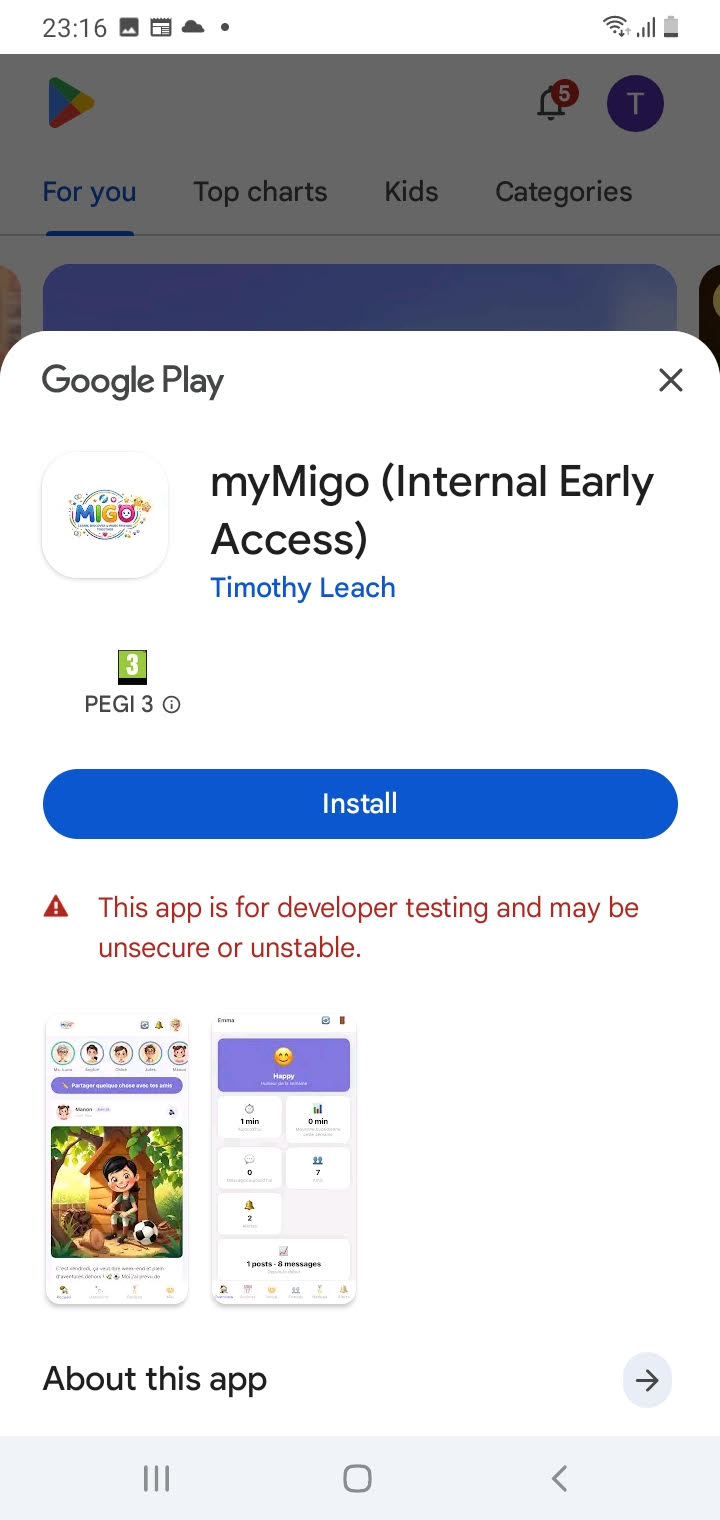
Vous recevrez un lien d'accès au test fermé sur le Play Store. Ouvrez-le sur votre téléphone Android et appuyez sur Devenir testeur, puis installez l'application depuis le Play Store.
You'll receive a closed-testing link for the Play Store. Open it on your Android phone, tap Become a tester, then install the app from the Play Store.
2L'enfant commence l'inscriptionThe child starts registration
Donnez le téléphone à votre enfant pour cette première étape.
Hand the phone to your child for this first step.
- Ouvrez l'application myMigo.
- Open the myMigo app.
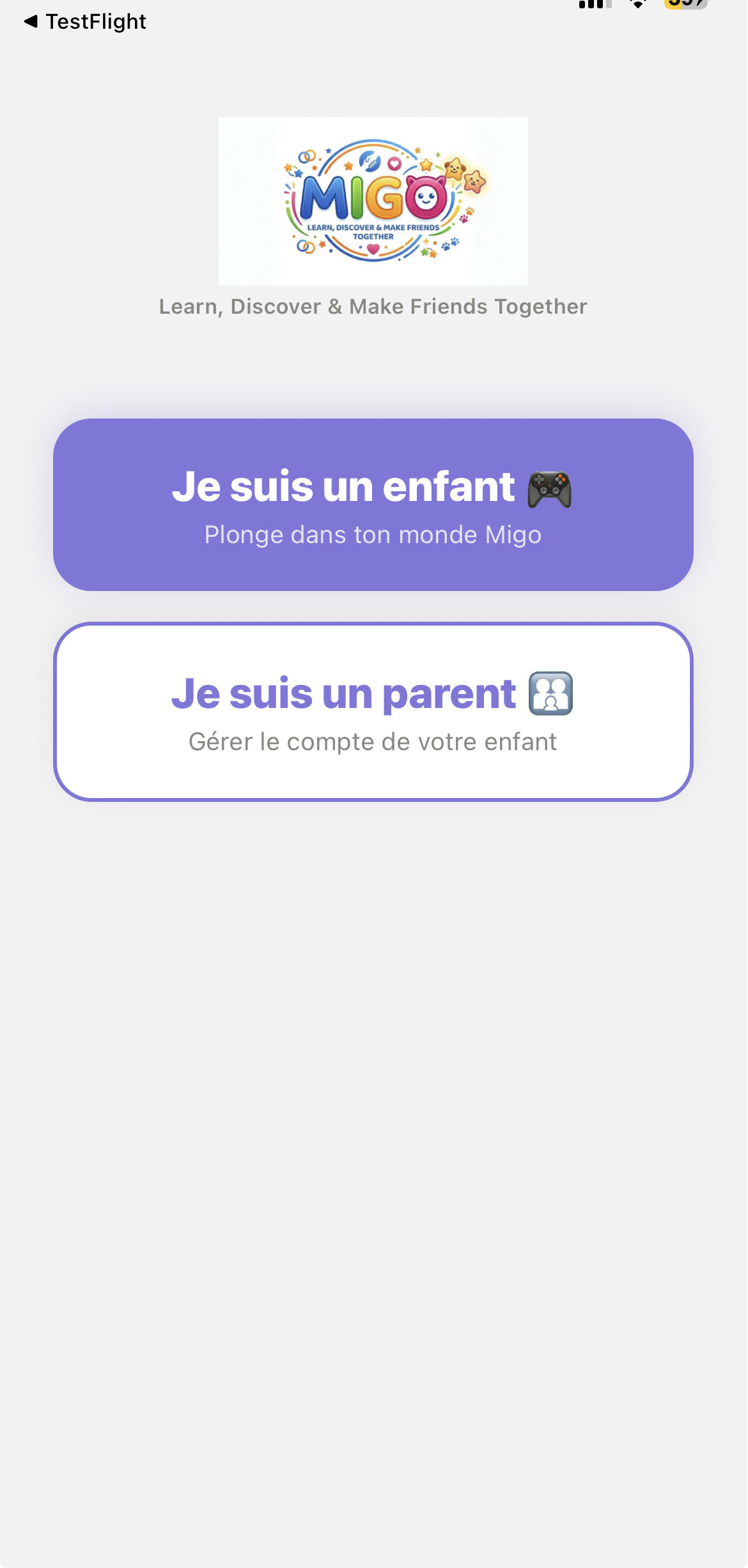
- Sur l'écran d'accueil, appuyez sur Je suis un enfant 🎮.
- On the home screen, tap I'm a Kid 🎮.
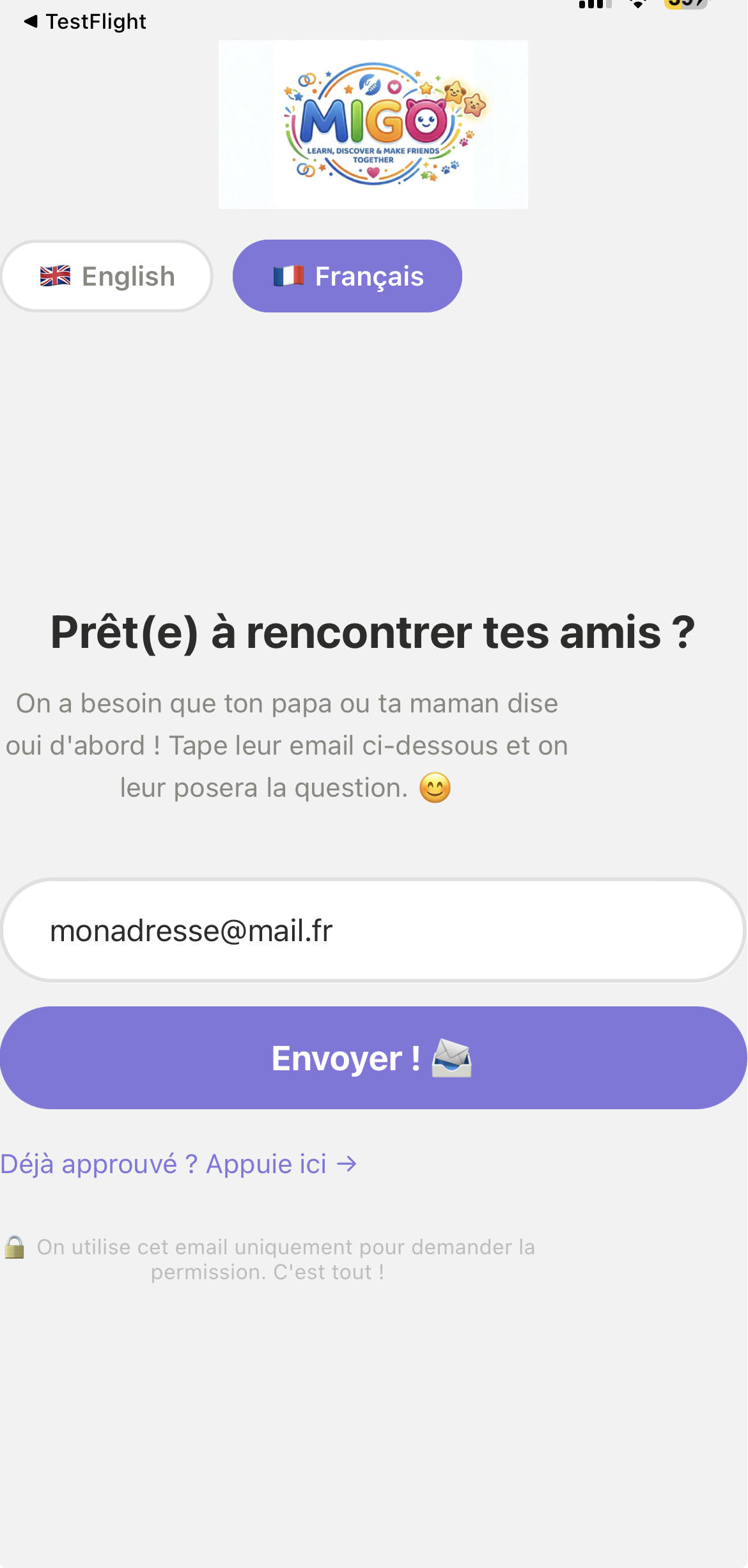
- L'enfant saisit l'adresse e-mail du parent (la vôtre) et appuie sur envoyer.
- The child enters the parent's email address (yours) and taps send.
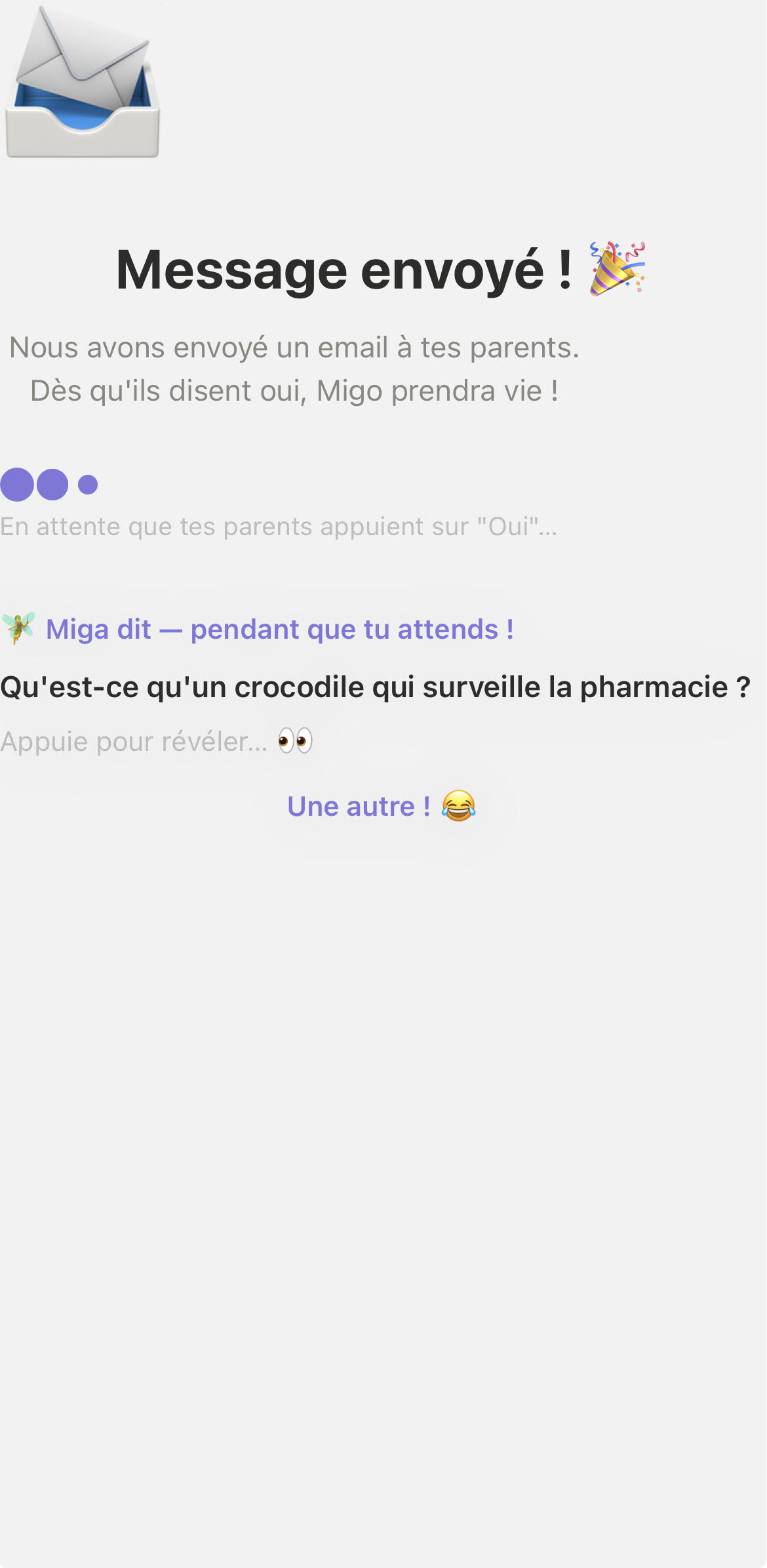
- Une écran d'attente s'affiche avec des blagues — c'est normal, l'app attend que le parent approuve par e-mail (voir étape 3).
- A waiting screen appears with jokes — this is normal, the app is waiting for the parent to approve by email (see step 3).
3Le parent approuve par e-mailThe parent approves by email
Cette étape se passe sur votre téléphone ou ordinateur, dans votre boîte mail.
This step happens on your phone or computer, in your email inbox.
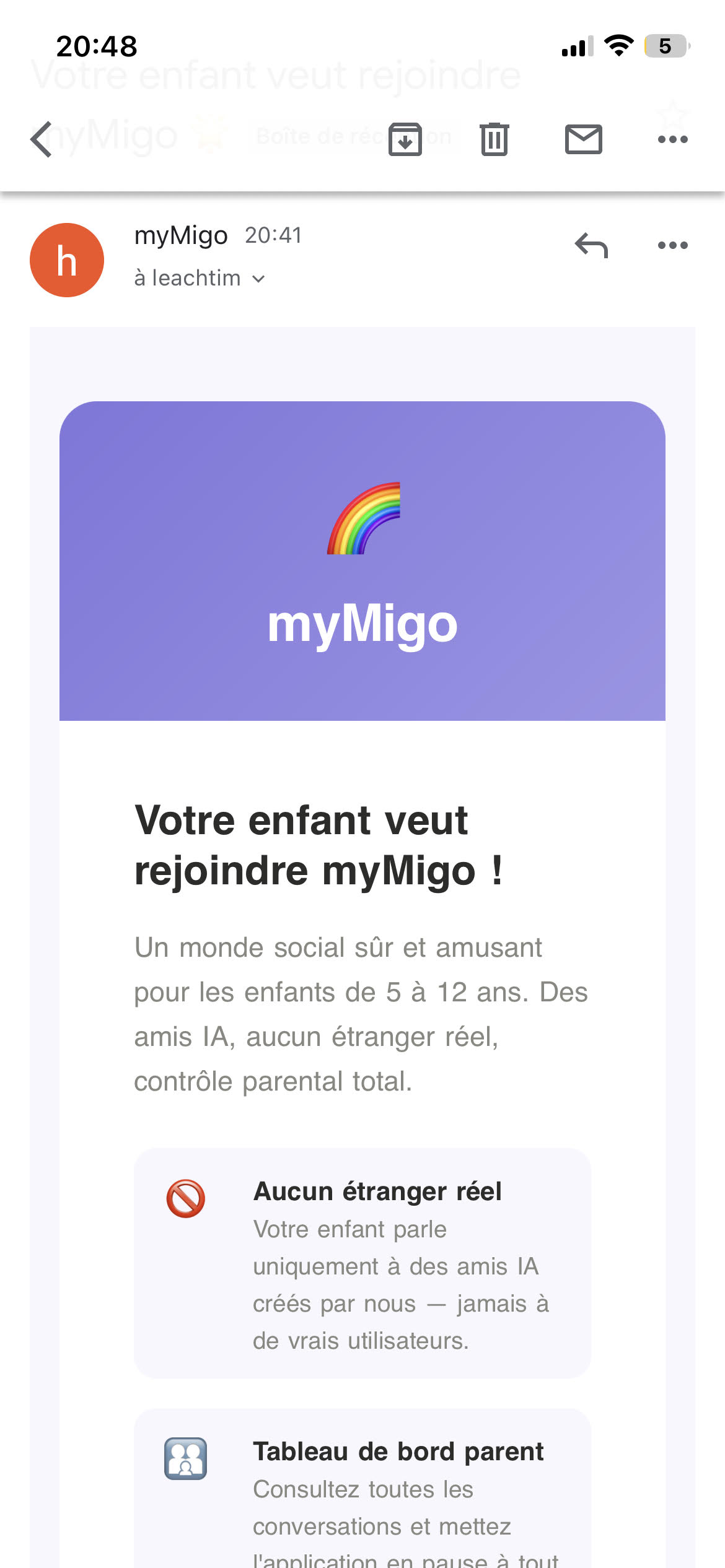
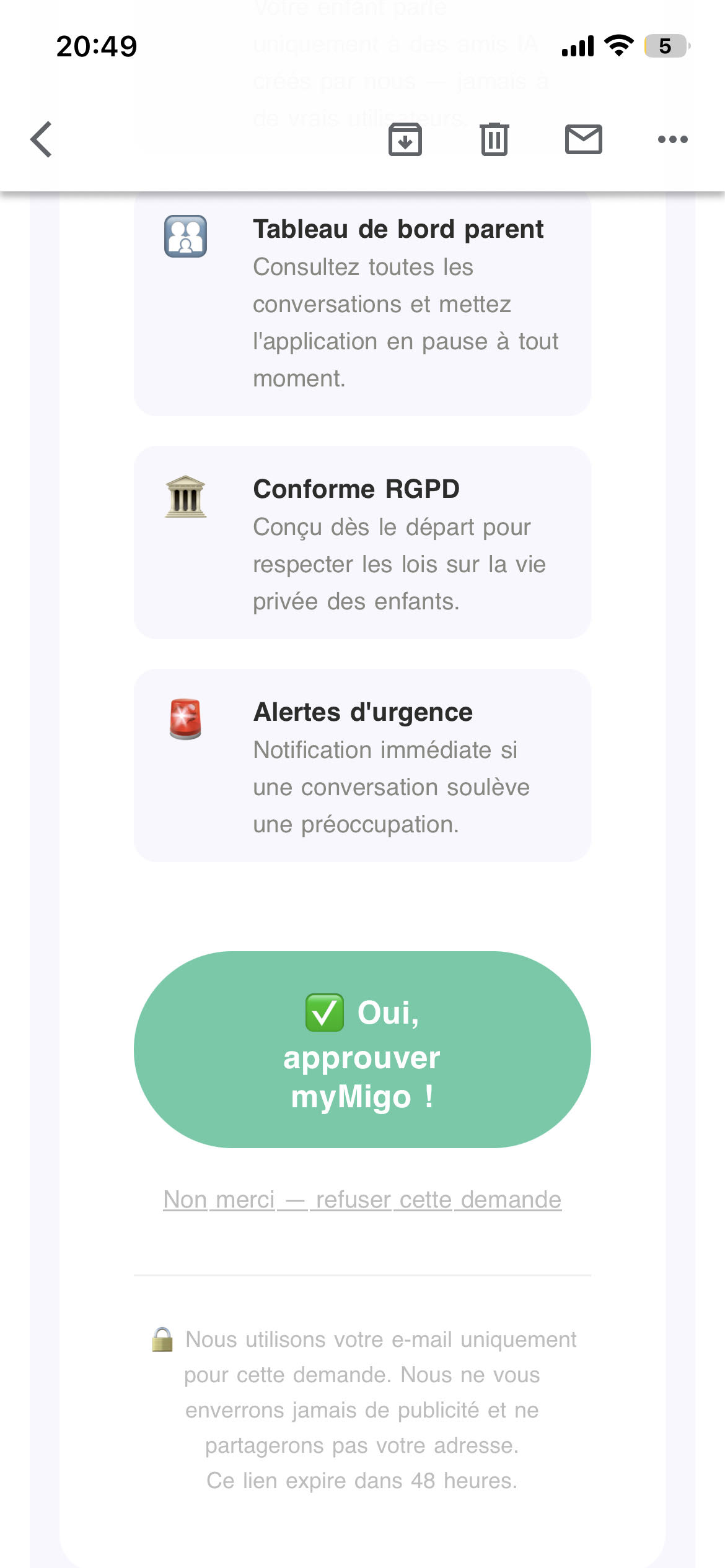
- Ouvrez l'e-mail reçu (sujet : « Votre enfant souhaite rejoindre myMigo »).
- Open the email you received (subject: "Your child wants to join myMigo").
- Appuyez sur Oui, j'approuve !
- Tap Yes, approve!
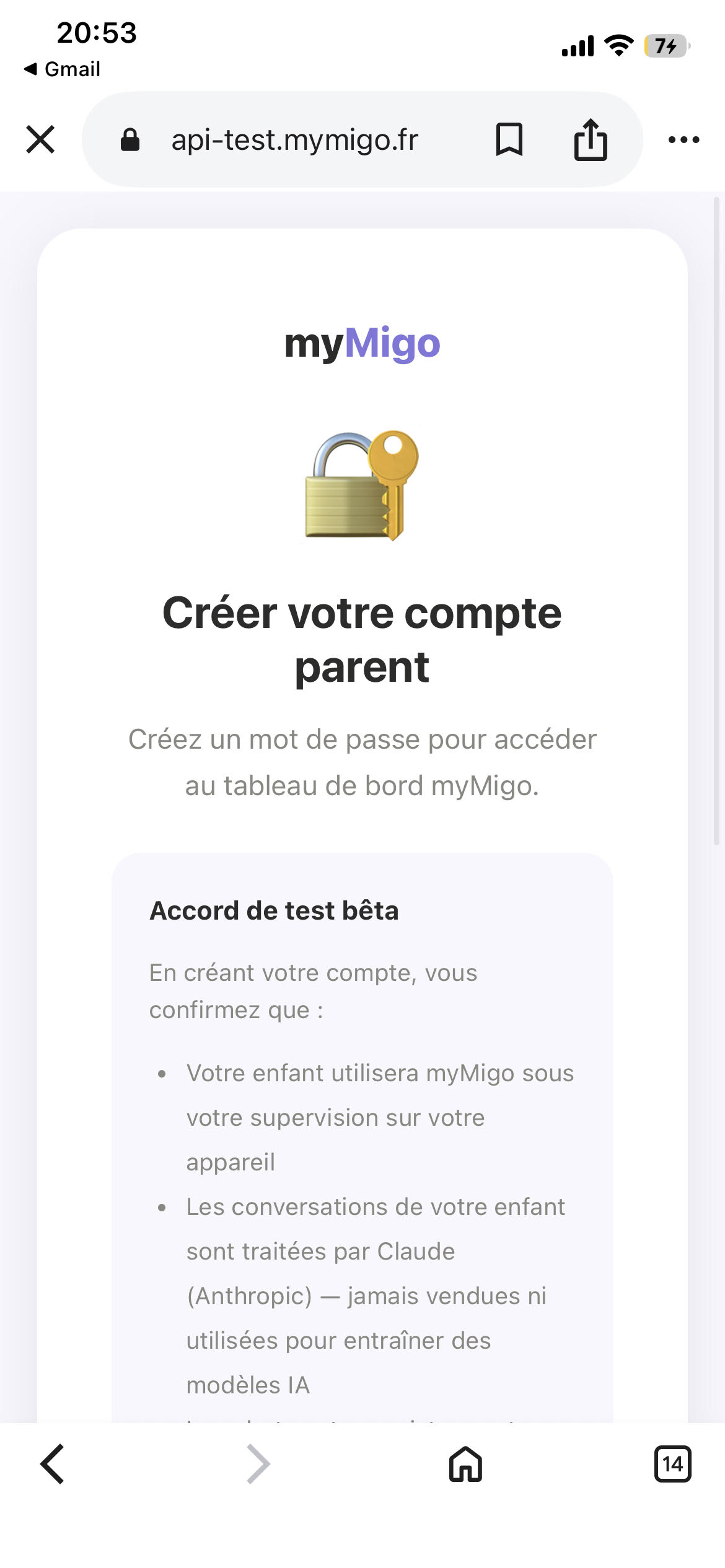
- Sur la page qui s'ouvre, appuyez sur Créer mon compte parent →
- On the page that opens, tap Set Up Parent Account →
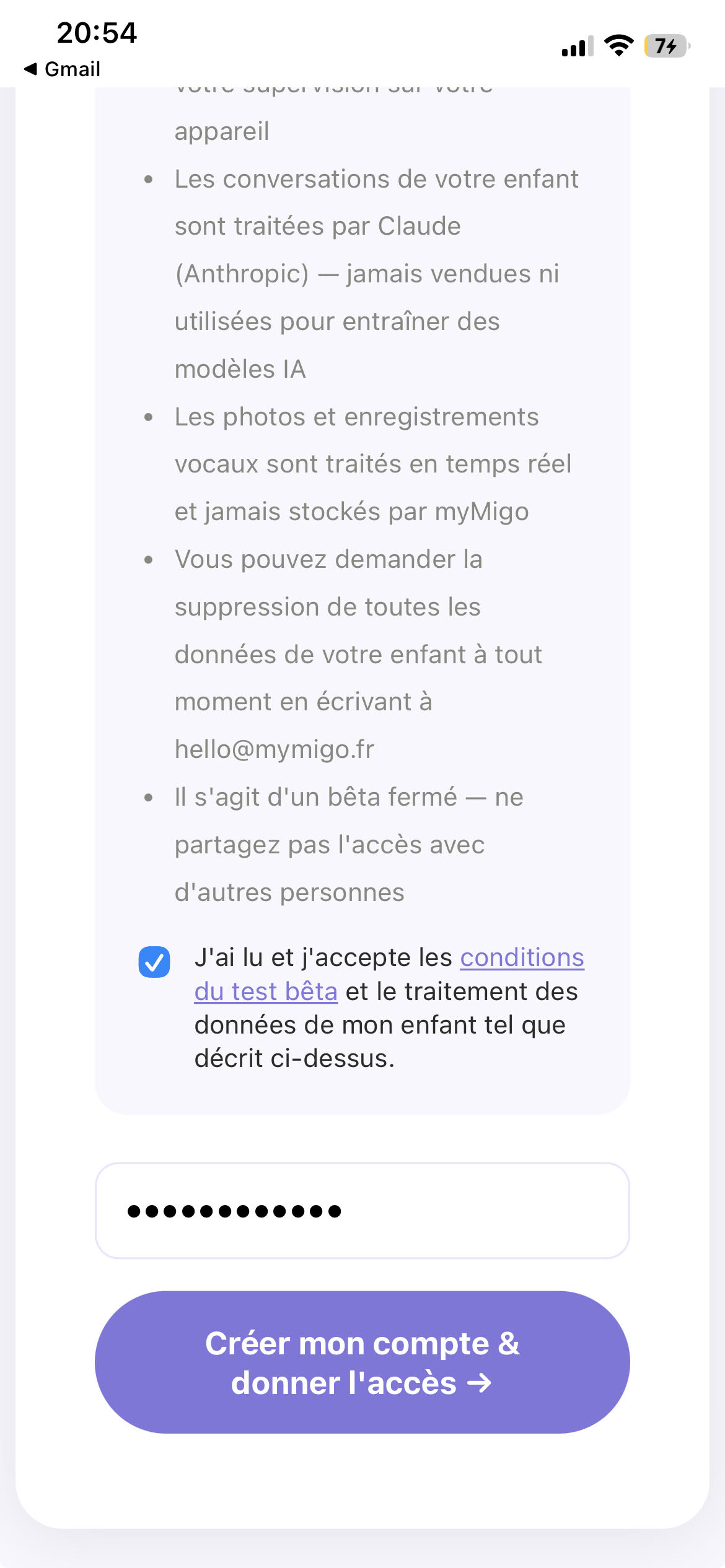
- Lisez l'accord de test bêta, cochez la case, choisissez un mot de passe (8 caractères minimum), puis validez.
- Read the beta test agreement, check the box, choose a password (minimum 8 characters), then submit.
- Vous voyez une page « Tout est prêt ! » — votre compte parent est créé.
- You'll see an "All Set!" page — your parent account is created.
4L'enfant termine l'inscriptionThe child finishes onboarding
Redonnez le téléphone à votre enfant. L'écran d'attente se ferme automatiquement dès que vous avez approuvé (pas besoin de rien faire de plus).
Hand the phone back to your child. The waiting screen closes automatically as soon as you've approved (nothing else to do).
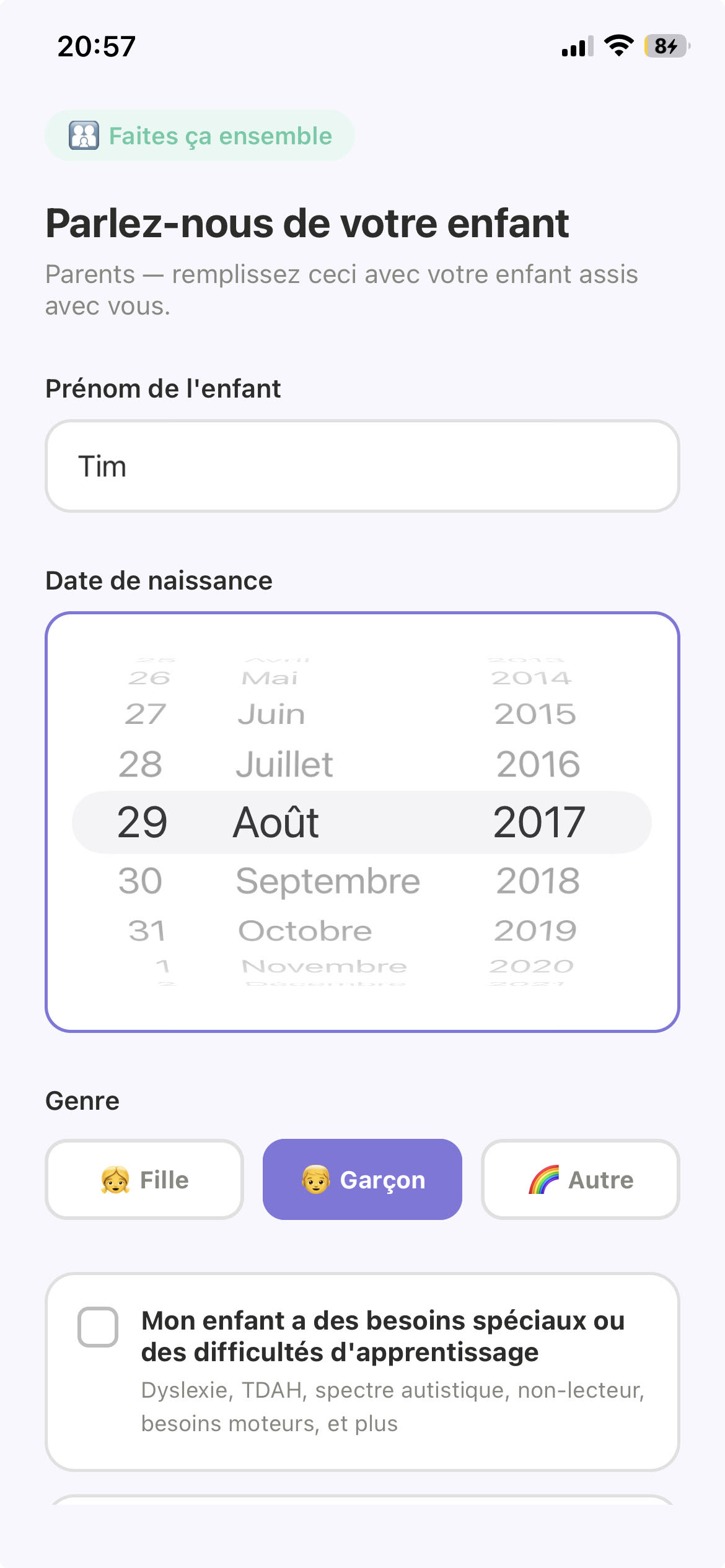
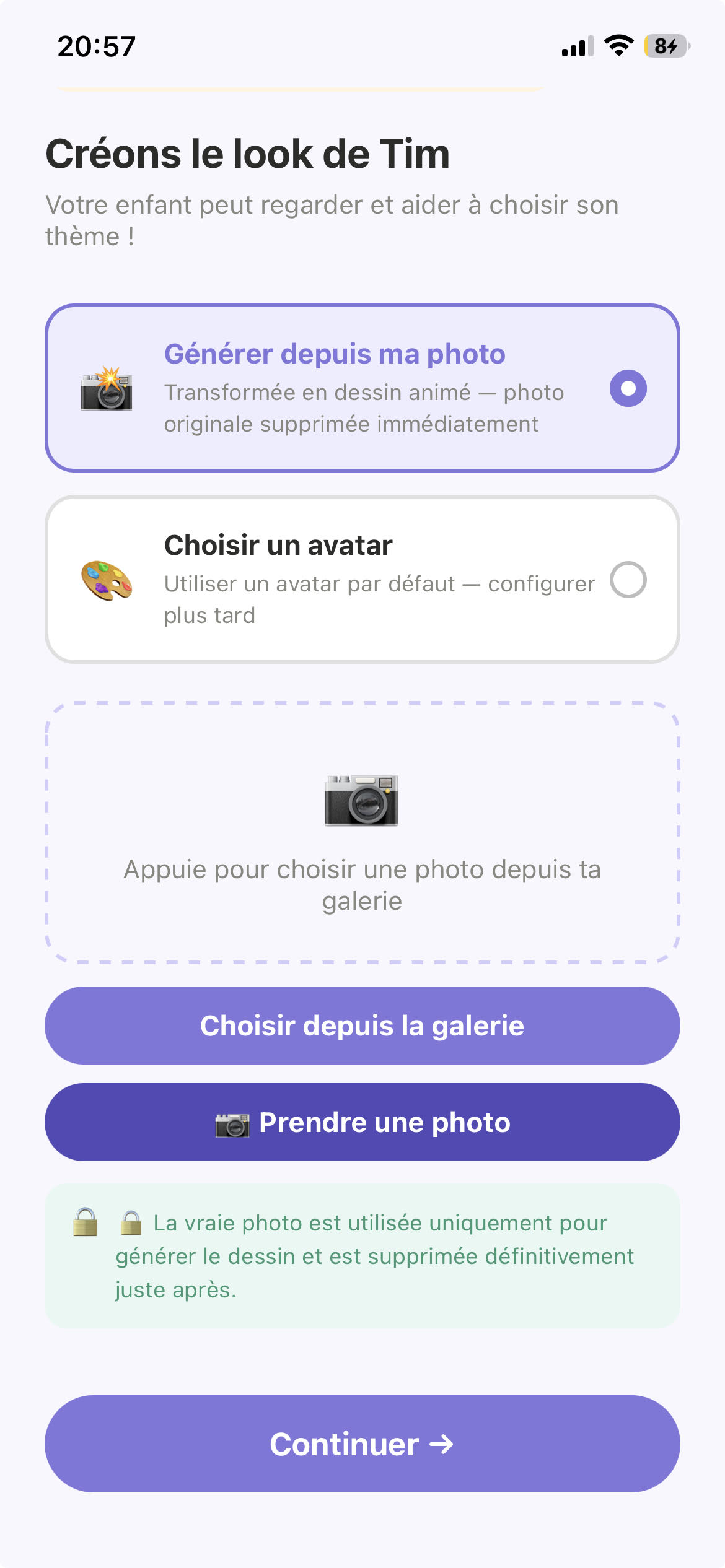
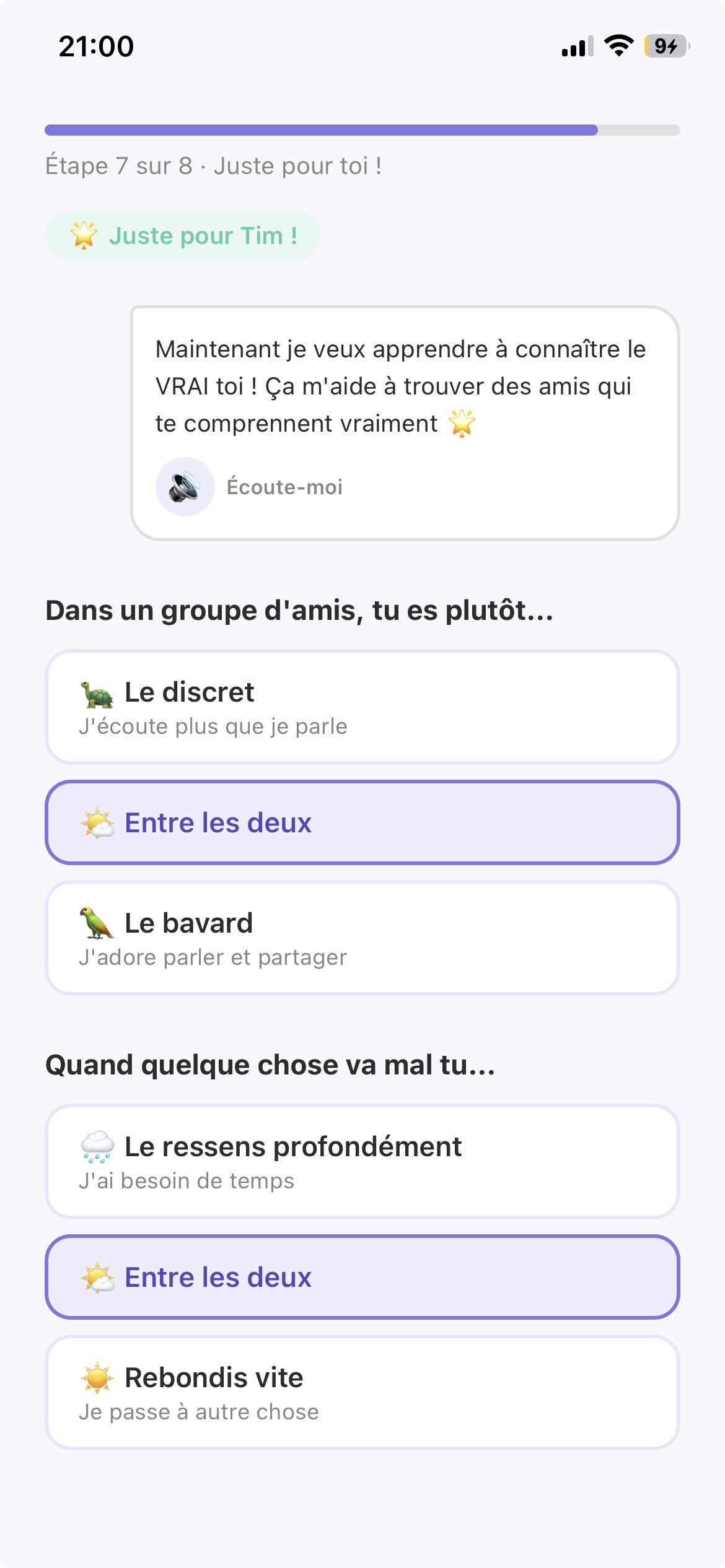
- L'enfant choisit son prénom, sa date de naissance, son avatar, ses centres d'intérêt et sa personnalité.
- The child chooses their name, date of birth, avatar, interests, and personality.
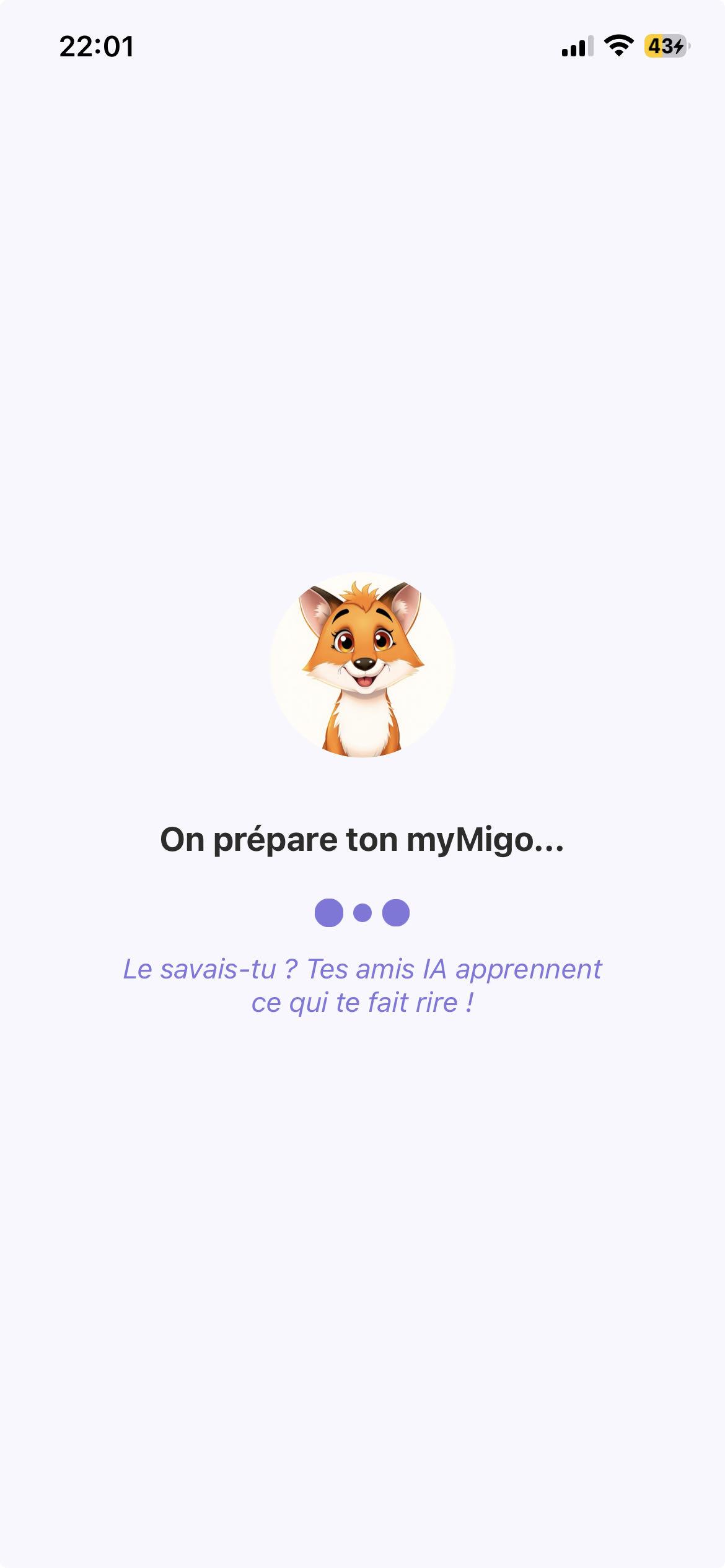
- L'écran « Ton monde myMigo se prépare » s'affiche pendant que ses amis IA sont créés (30 à 60 secondes environ).
- A "Setting up your Migo world" screen appears while their AI friends are created (roughly 30–60 seconds).
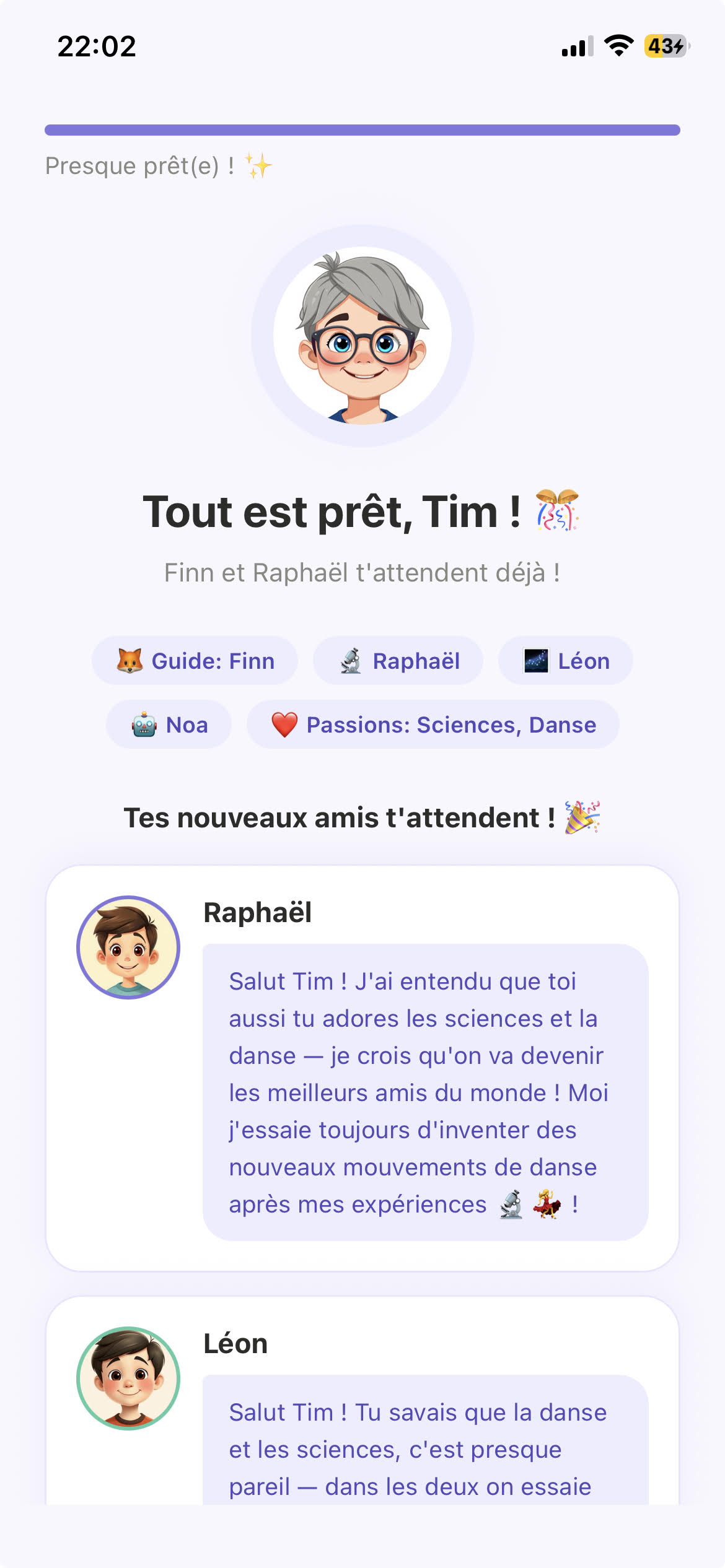
- Une fois prêt, l'enfant découvre ses nouveaux amis et appuie sur le bouton pour continuer.
- Once ready, the child sees their new friends and taps the button to continue.
5Passer du profil enfant au tableau de bord parentSwitching from the child profile to the parent dashboard
A. Quitter le profil enfant
A. Leave the child profile
- Dans l'application (en tant qu'enfant), allez dans l'onglet Moi en bas de l'écran.
- In the app (as the child), go to the Me tab at the bottom of the screen.
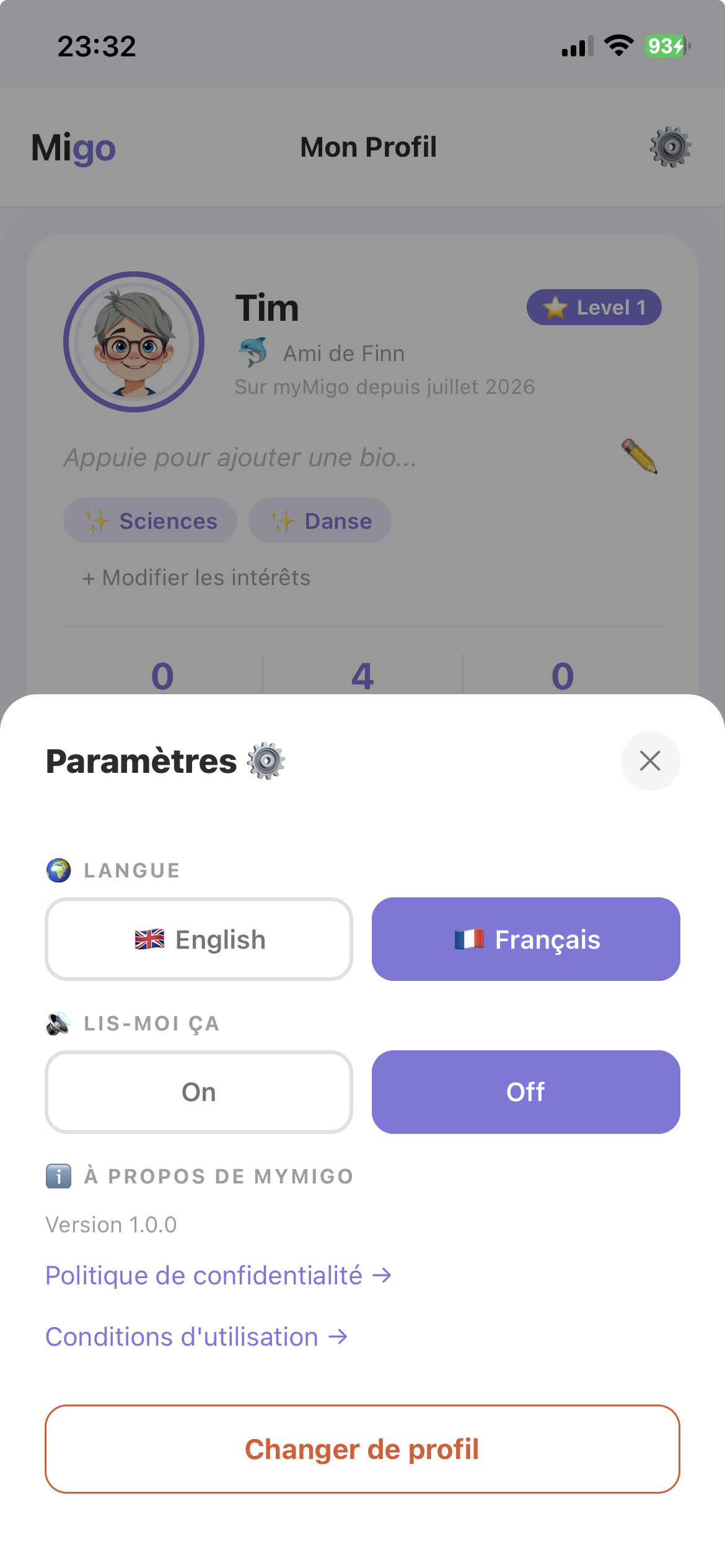
- Appuyez sur l'icône ⚙️ (roue crantée) en haut à droite de l'écran.
- Tap the ⚙️ (gear) icon in the top right of the screen.
- Appuyez sur Changer de profil, puis confirmez.
- Tap Switch Profile, then confirm.
- Vous revenez à l'écran d'accueil de l'application.
- You'll land back on the app's home screen.
B. Se connecter en tant que parent
B. Log in as a parent
- Sur l'écran d'accueil, appuyez sur Je suis un parent 👨👩👧.
- On the home screen, tap I'm a Parent 👨👩👧.
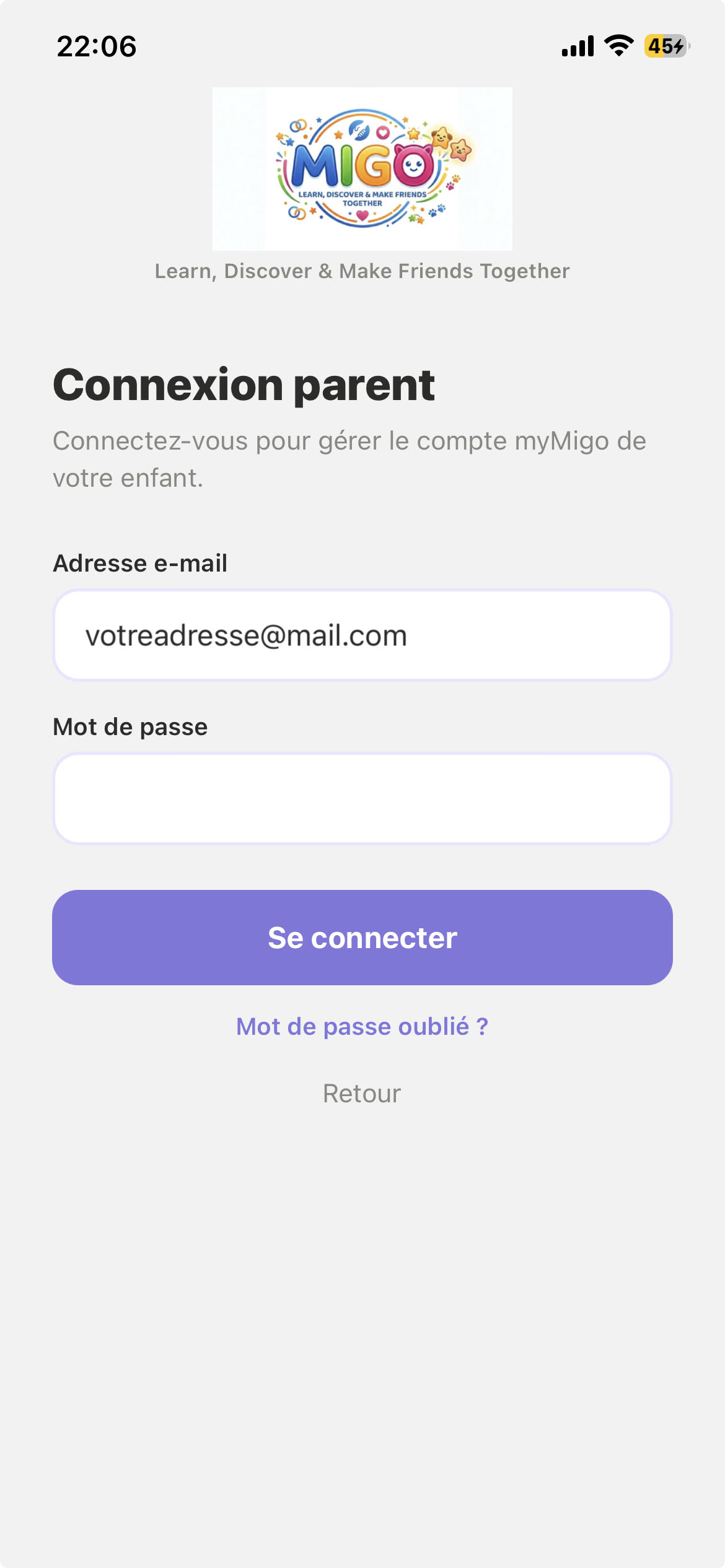
- Entrez l'e-mail et le mot de passe que vous avez créés à l'étape 3.
- Enter the email and password you created in step 3.
- Passez à la double authentification — voir ci-dessous.
- You'll move to two-factor authentication — see below.
6La double authentification (2FA)Two-factor authentication (2FA)
Pour protéger les données de votre enfant, myMigo demande toujours un code de sécurité en plus du mot de passe, à chaque connexion parent.
To protect your child's data, myMigo always asks for a security code in addition to the password, every time you log in as a parent.
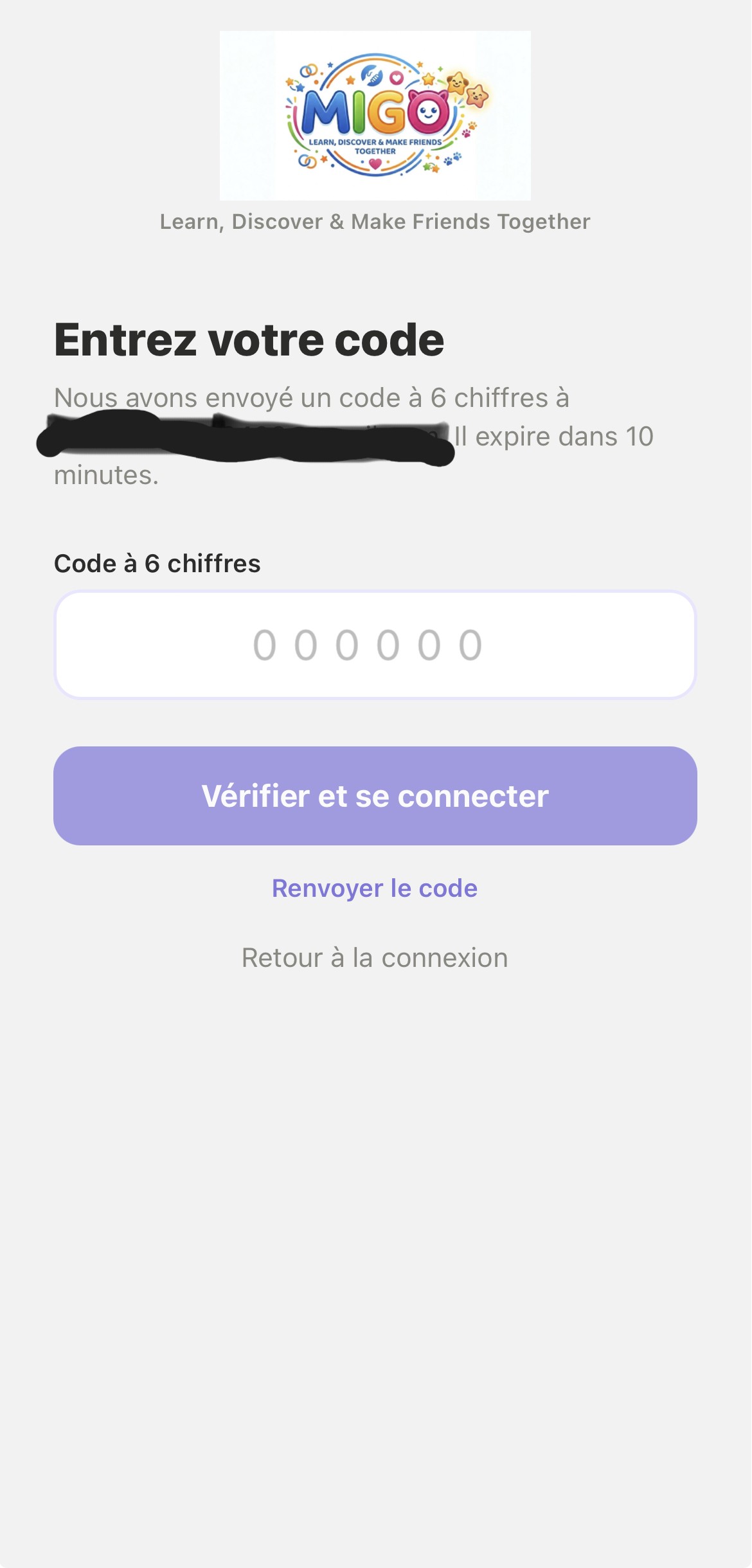
- Après avoir entré votre mot de passe, un code à 6 chiffres est envoyé par e-mail à votre adresse.
- After entering your password, a 6-digit code is sent by email to your address.
- Ouvrez votre boîte mail, récupérez le code, et saisissez-le dans l'application.
- Open your inbox, get the code, and enter it in the app.
- Vous accédez alors au tableau de bord parent.
- You'll then land on the parent dashboard.
7Ajouter un deuxième enfantAdding a second child
Il existe deux façons de faire — utilisez celle qui vous convient.
There are two ways to do this — use whichever suits you.
Méthode 1 — Depuis le compte parent
Method 1 — From the parent account
- Connectez-vous en tant que parent (étapes 5 et 6).
- Log in as a parent (steps 5 and 6).
- Sur le tableau de bord, appuyez sur la tuile Ajouter un enfant +.
- On the dashboard, tap the Add another child + tile.
- Entrez le prénom et la date de naissance de l'enfant, puis appuyez sur Commencer.
- Enter the child's name and date of birth, then tap Start.
- L'enfant complète directement le reste de l'inscription (avatar, centres d'intérêt...) — aucun nouvel e-mail d'approbation n'est nécessaire, puisque vous êtes déjà connecté en tant que parent.
- The child completes the rest of onboarding directly (avatar, interests...) — no new approval email is needed, since you're already logged in as the parent.
Méthode 2 — Depuis le profil enfant
Method 2 — From the child side
- Sur l'écran d'accueil, appuyez sur Je suis un enfant 🎮.
- On the home screen, tap I'm a Kid 🎮.
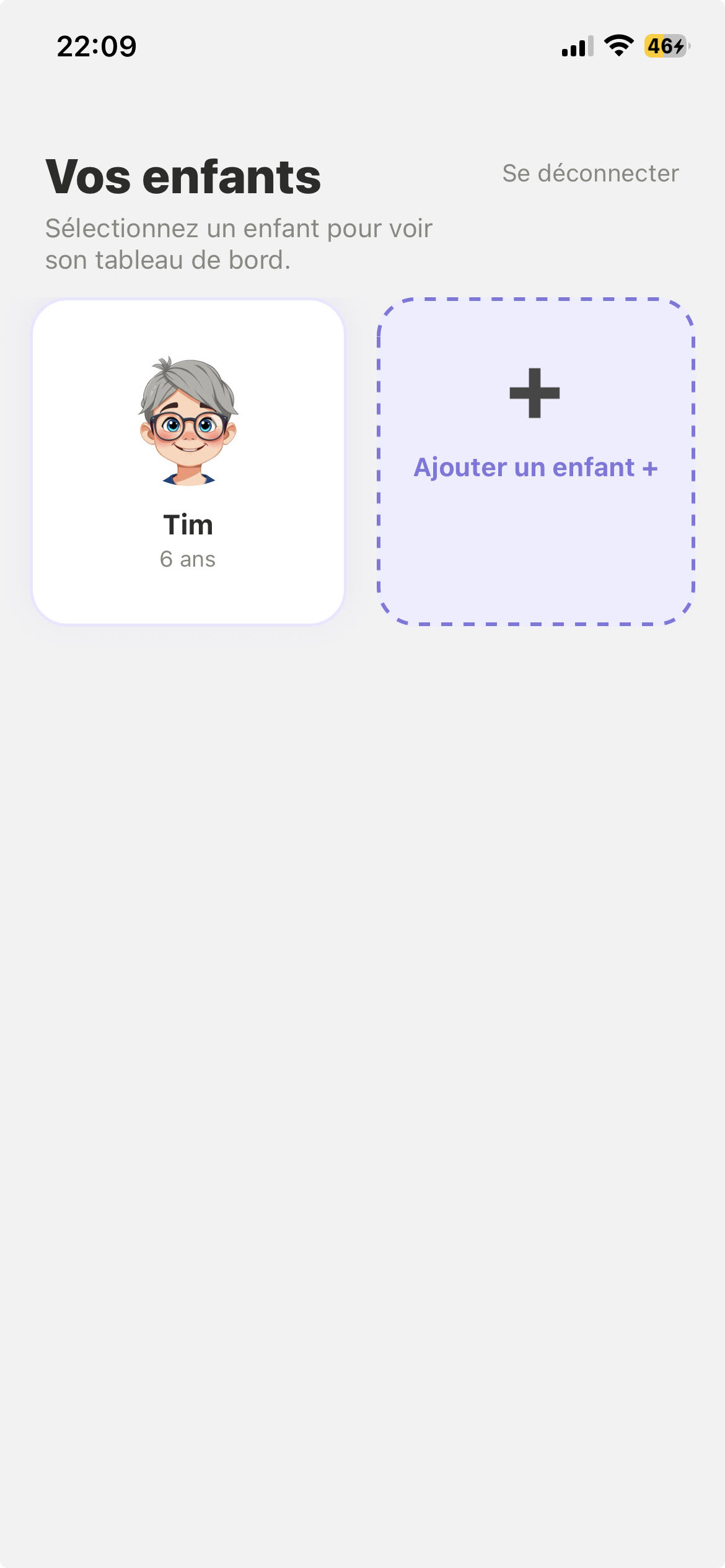
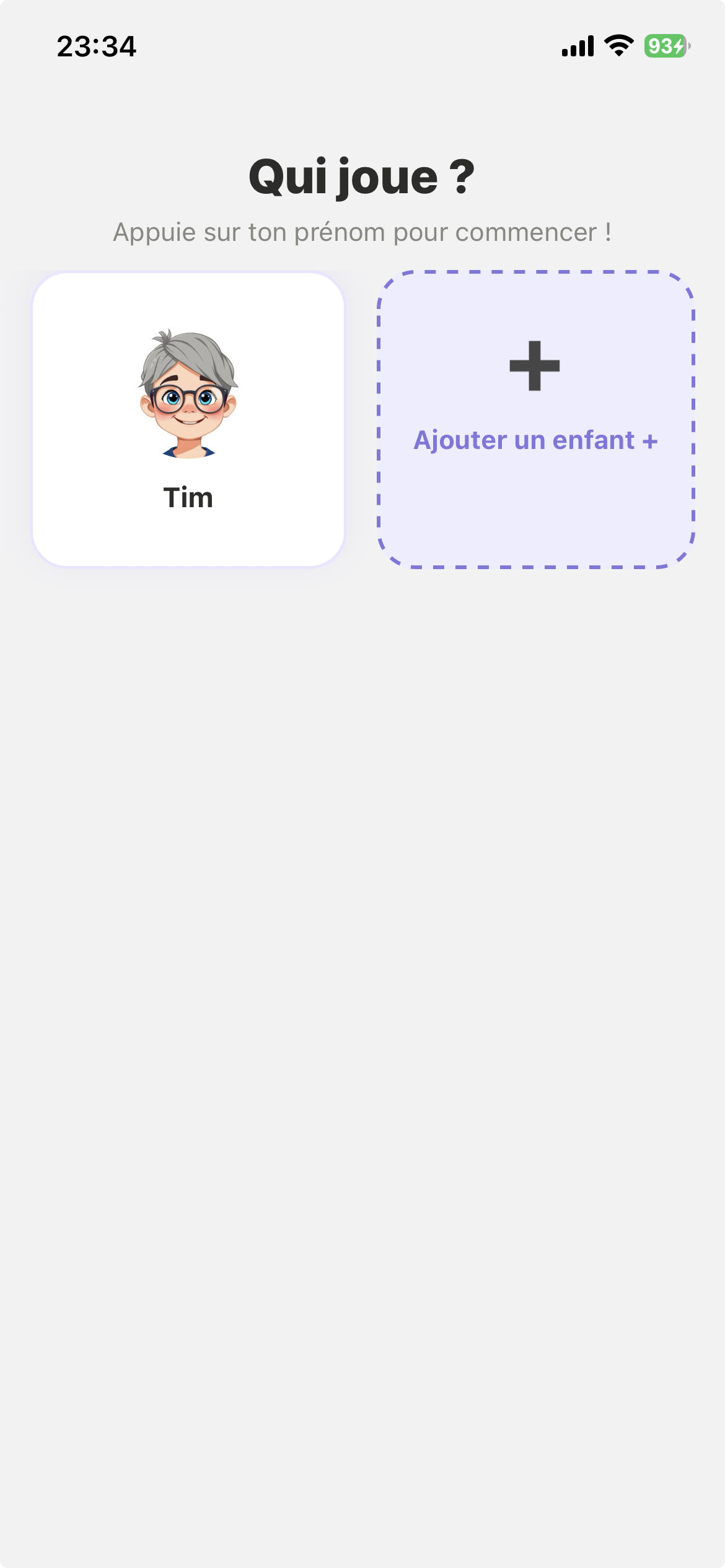
- Sur l'écran de sélection des profils, appuyez sur la tuile Ajouter un enfant +.
- On the profile selection screen, tap the Add a child + tile.
- L'enfant ressaisit l'e-mail du parent. Si c'est la même adresse que précédemment, l'application le reconnaît automatiquement et passe directement à l'inscription — sans nouvel e-mail à approuver.
- The child re-enters the parent's email. If it's the same address as before, the app recognizes it automatically and goes straight into onboarding — no new email to approve.
8Bon à savoirGood to know
Plusieurs enfants sur le même téléphone
Multiple children on the same phone
Depuis l'écran d'accueil, appuyez sur Je suis un enfant 🎮 : vous verrez tous les profils enfants déjà créés sur cet appareil et pourrez choisir lequel utiliser.
From the home screen, tap I'm a Kid 🎮: you'll see all the child profiles already created on this device and can pick which one to use.
Mot de passe oublié
Forgot your password
Sur l'écran de connexion parent, appuyez sur « Mot de passe oublié ? » — un lien de réinitialisation vous sera envoyé par e-mail.
On the parent login screen, tap "Forgot password?" — a reset link will be emailed to you.
Le tableau de bord parent
The parent dashboard
Une fois connecté, vous pouvez consulter l'activité de votre enfant, ses amis IA, ses badges, son humeur, et les alertes de sécurité — n'hésitez pas à tout explorer, c'est exactement ce que nous voulons que vous testiez.
Once logged in, you can review your child's activity, their AI friends, badges, mood, and safety alerts — feel free to explore everything, that's exactly what we want you to test.
Le temps d'écran se règle aussi depuis le tableau de bord parent : vous pouvez y définir une limite quotidienne pour votre enfant.
Screen time can also be set from the parent dashboard: you can define a daily limit for your child there.
Signaler un problème
Reporting an issue
Deux façons simples : écrivez-nous directement à hello@mymigo.fr avec une capture d'écran, ou demandez à votre enfant de le signaler directement à Miga dans l'application — Miga peut faire remonter les problèmes pour vous.
Two easy ways: email us directly at hello@mymigo.fr with a screenshot, or have your child report it directly to Miga inside the app — Miga can pass issues along for you.
Vie privée et sécurité
Privacy and safety
Les amis de votre enfant sont exclusivement des IA — jamais de vrais inconnus. Vous recevez une alerte si une conversation pose question, et vous gardez le contrôle du temps d'écran et du niveau de filtrage de contenu depuis le tableau de bord parent.
Your child's friends are exclusively AI — never real strangers. You'll get an alert if a conversation raises a concern, and you stay in control of screen time and content filtering from the parent dashboard.